What Is a JFIF File and How Do You Open or Convert It?
You saved a picture from the web and it came out as .jfif. Now a form refuses it, a friend cannot open it, or you just do not know what it is. The good news: the picture inside is a perfectly normal JPEG, and fixing it takes seconds.
What a JFIF file actually is
JFIF stands for JPEG File Interchange Format. It is not a different kind of image: it is the standard way JPEG photos have been stored in files since the early 1990s. Most JPG files you have ever opened follow the JFIF rules. A file ending in .jfif simply carries that name on the outside instead of the usual .jpg or .jpeg.
That is why the fix is so simple. Nothing needs to be "translated": the photo only needs the ending that apps and websites expect.
Why your computer saves pictures as .jfif
It usually happens on Windows when you save an image from a browser such as Chrome or Edge. The browser asks Windows which file ending belongs to JPEG images, and on many PCs a Windows setting answers ".jfif". Some people find that the setting comes back after Windows updates, which is why the problem seems to return on its own.
How to open a JFIF file
- Windows: the Photos app and any web browser open .jfif files. Drag the file into a browser window if nothing else works.
- Mac: Preview usually opens it. If it does not, rename the file to end in .jpg.
- Phone: if your gallery or the file you received will not show it, convert it to JPG first (below). It works in the phone browser.
Opening is rarely the real problem. The trouble starts when you upload: many forms, shops and portals check only the file ending and turn away anything that is not .jpg, .jpeg or .png.
Convert JFIF to JPG, PDF or PNG
| You need | Do this |
|---|---|
| JPG | Use JFIF to JPG. The picture is copied unchanged, so there is no quality loss at all. |
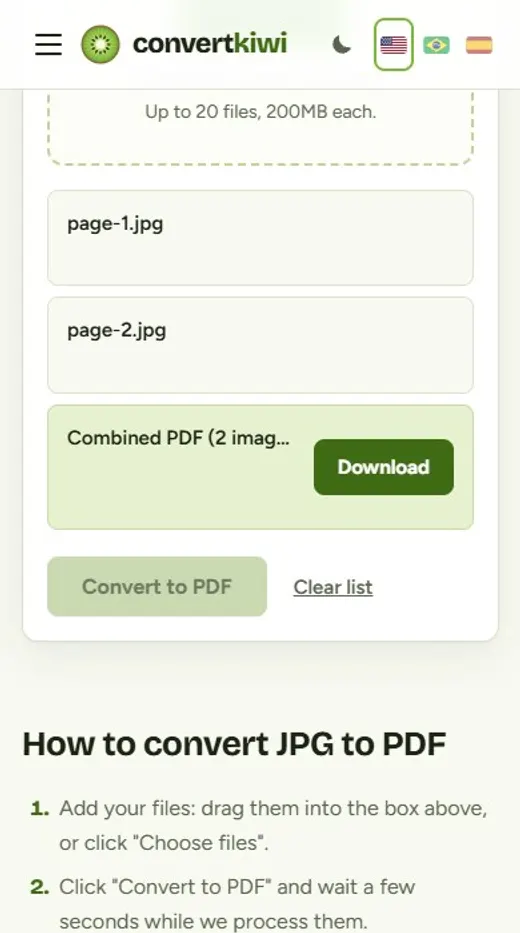
| Convert to JPG first, then use JPG to PDF. You can put several photos into one PDF, one per page. | |
| PNG | Convert to JPG first, then use JPG to PNG. Expect a much bigger file; only do this if an app asks for PNG. |
Only have one file on a computer? Renaming also works: show file name extensions in File Explorer (View, then Show, then File name extensions), then change photo.jfif to photo.jpg. The converter is faster when you have many files, when you are on a phone, or when you are not sure the file is really an image, because it checks each file before converting.
How to stop Windows from saving images as .jfif
The setting lives in the Windows Registry. Changing it is safe if you follow the steps exactly, but the Registry controls important parts of Windows, so if you are not comfortable with it, keep converting or renaming instead.
- Press Windows + R, type regedit and press Enter. Accept the permission prompt.
- Click File, then Export and save a backup copy of the registry first.
- Go to HKEY_CLASSES_ROOTMIMEDatabaseContent Typeimage/jpeg.
- Double-click the value named Extension and change .jfif to .jpg.
- Close the editor and restart your browser. New pictures you save should now end in .jpg.
If .jfif comes back after a Windows update, repeat the same steps.
Common questions
Is a JFIF file safe?
The format itself is just a photo, like any JPG. As with any file, only open pictures from sources you trust. Our converter refuses anything that is not a real JPEG image.
Does converting JFIF to JPG reduce quality?
Not with ConvertKiwi: the image data is copied as it is, so the JPG is identical to the JFIF, byte for byte.
What is the difference between JPG and JPEG?
None. They are two endings for the same format. Old versions of Windows only allowed three-letter endings, which is how .jpg became common.
Sources
More guides
WEBP vs PNG vs JPG: Which Image Format Should You Use?
A plain-English comparison of WEBP, PNG and JPG: file size, quality, transparency and compatibility, plus a simple rule for picking the right one.
Read the guide →How to Turn Phone Photos of Documents Into a Single PDF
Take clean photos of documents with your phone and combine them into one tidy PDF for job applications, visas, schools and forms.
Read the guide →How to Merge PDF Files Into One (in the Right Order)
Combine several PDFs into a single document online: how to get the page order right, what to do with password-protected files and how to include photos.
Read the guide →iPhone Photos (HEIC) Won't Open on Windows? Here Is How to Fix It
Why iPhone photos arrive as HEIC files that Windows, websites and older apps cannot open, three ways to fix it and the iPhone setting that stops it happening.
Read the guide →