How to Convert Word to PDF (Free, Even Without Microsoft Word)
A job portal, a school or a bank asks for a PDF and all you have is a .docx file, maybe on a computer without Microsoft Word. The conversion is easy. What takes care is making sure the PDF looks like your document, because fonts and page breaks are where things can move.
The quick answer
If you have Word, use File, then Save As, then PDF: it is the most faithful option because the same program that made the document draws the PDF. If you do not have Word, open the file in our Word to PDF converter, Google Docs or LibreOffice. All three work, and the differences are small and mostly about fonts.
Four ways to convert, compared
| Method | Needs | Fidelity to Word | Good for |
|---|---|---|---|
| Word: Save As PDF | Microsoft Word | Highest | Anything that must look exactly right |
| Google Docs: Download as PDF | A Google account | Good for simple text | Documents you edit online anyway |
| LibreOffice: Export as PDF | A free program to install | Good | Computers without Word |
| Online converter | Only a browser | Good | A phone or a borrowed computer |
How to do each one
In Microsoft Word
- Open the document and choose File, then Save As (on a Mac, File then Export).
- Set the file type to PDF.
- In the options, Standard (publishing online and printing) keeps images sharp. Minimum size (publishing online) gives a smaller file with softer images.
In Google Docs
- Upload the .docx to Google Drive and open it with Google Docs.
- Choose File, then Download, then PDF document (.pdf).
- Check the result: complex tables, text boxes and special fonts are the usual casualties of the round trip.
In LibreOffice
- Open the .docx in Writer.
- Choose File, then Export as PDF.
With the online converter
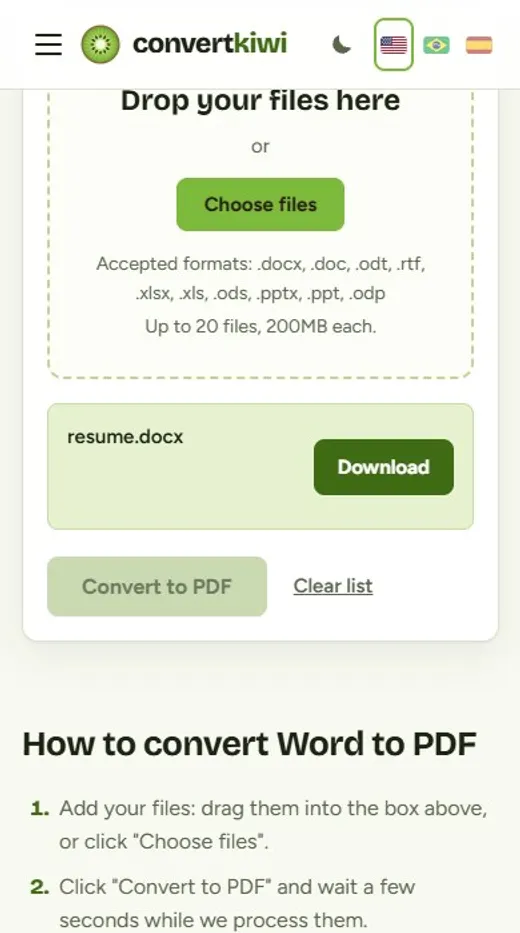
- Open Word to PDF and add your file. It also accepts DOC, ODT, RTF, Excel and PowerPoint files, up to 200 MB.
- Click Convert to PDF and download the result.
- Open the PDF and check the first page before sending it.
What we measured
We tested our converter with a small Word file that used the Calibri and Cambria fonts, plus an Excel sheet and an RTF file. Each one became a one-page PDF in about 3 to 4 seconds. The converter runs LibreOffice, not Microsoft Word. For Calibri and Cambria it uses look-alike fonts (Carlito and Caladea) that have the same letter widths, so lines and page breaks stay in the same place. The PDF itself confirmed it: the fonts inside were Carlito and Caladea, not a random fallback. A file that was only plain text with a .docx name was refused instead of being converted.
Keep the layout from moving
- Use common fonts. Arial, Times New Roman, Courier, Calibri and Cambria have look-alikes on our server. A rare or paid font does not, so it is replaced and the text can reflow.
- Check the page breaks. Open the PDF and look at where each page ends, especially before tables and headings.
- Accept or reject tracked changes in Word first. The PDF shows the document as it looks on screen.
- Remove any password. A protected document cannot be opened by a converter.
- For Excel, set the print area. A wide sheet follows its print settings, so use "fit all columns on one page" when you do not want it split.
If the PDF is too big
Documents with large photos make large PDFs. Use Compress PDF afterwards, and read how to reduce a PDF's size for email and forms to pick the right level. To put several documents in one file, use Merge PDF.
Frequently asked questions
Is it safe to convert a work or school document online?
On ConvertKiwi, the document is deleted from the server as soon as the conversion ends, and the PDF is removed after 30 minutes. If a document is truly confidential, converting it on your own computer with Word or LibreOffice is the safest choice.
Will my links and images stay?
Images stay in place, and links remain clickable in the PDF. Check text boxes and floating pictures, which are the elements most likely to move.
Why does my PDF look a little different from Word?
Almost always a font. If your document uses a font that the converter does not have, a similar one replaces it. Look-alikes exist for Calibri, Cambria, Arial, Times New Roman and Courier, so those are safe.
Can I convert a PowerPoint or an Excel file the same way?
Yes. PowerPoint becomes one page per slide, without animations or speaker notes. Excel follows each sheet's print settings.
Sources
More guides
How to Turn Phone Photos of Documents Into a Single PDF
Take clean photos of documents with your phone and combine them into one tidy PDF for job applications, visas, schools and forms.
Read the guide →How to Merge PDF Files Into One (in the Right Order)
Combine several PDFs into a single document online: how to get the page order right, what to do with password-protected files and how to include photos.
Read the guide →How to Reduce a PDF File Size for Email and Upload Forms
Why some PDFs are huge, how compression shrinks them without making text blurry, which level to choose and what to do when a PDF is still too big.
Read the guide →Email Attachment Too Large? How to Shrink Videos, PDFs and Photos to Fit
Personal Gmail and Yahoo Mail allow 25 MB of attachments; Outlook limits vary by account. How to shrink videos, PDFs and photos that are too large to send.
Read the guide →