How to Convert WebP to JPG on Windows, Mac and Phone
You saved a picture from a website and it came out as .webp. Now an upload form, an email or an older program will not take it. A WebP is an ordinary picture in a newer format, and turning it into a JPG takes a few seconds. What is worth knowing is what the conversion changes, so the result is the one you wanted.
The quick answer
Open WebP to JPG, add your files (up to 20 at a time), click Convert to JPG and download them. It works in any browser on a computer or a phone, with nothing to install. If you only have one picture and a recent Windows or Mac, the built-in programs below also work.
Why your picture is a .webp
WebP is an image format made by Google to make web pages load faster. Many websites serve their pictures as WebP, and Chrome and Edge save them exactly as they are, so "Save image as" gives you a .webp file. Most phones, printers, older editors and many upload forms still expect JPG or PNG.
Ways to convert, compared
| Method | Needs | Several files at once | Good for |
|---|---|---|---|
| Online converter | A browser | Yes, up to 20 | A phone, a borrowed computer, a whole folder |
| Windows Paint | Recent Windows 11 | No, one by one | A single picture on your PC |
| Mac Preview | Recent macOS | One by one is simplest | A single picture on your Mac |
With the online converter
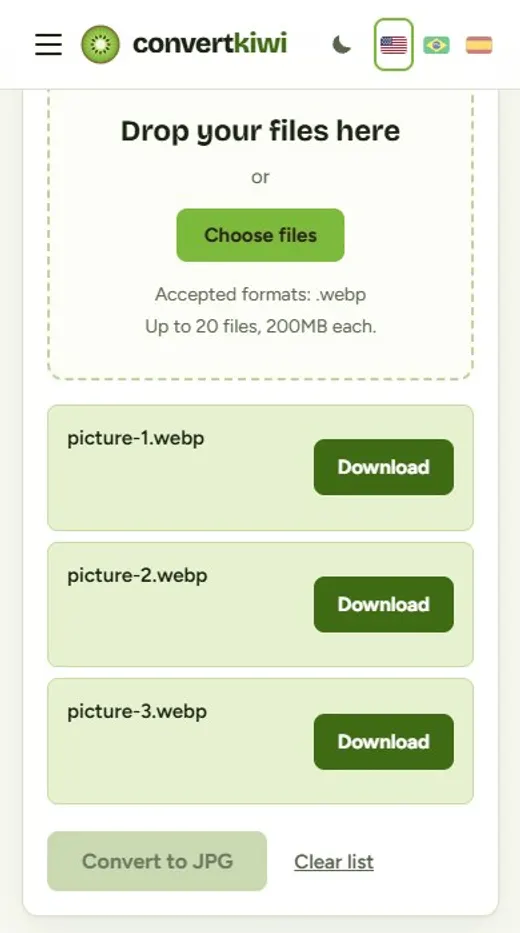
- Open WebP to JPG and add your .webp files, either by dragging them in or with "Choose files".
- Click Convert to JPG.
- Download each JPG. They keep the original size in pixels and the original name, with .jpg at the end.
In Windows Paint
- Right-click the .webp file, then Open with, then Paint.
- Choose File, then Save as, then JPEG picture.
Recent versions of Windows 11 open WebP in Paint. If yours does not, update Windows or use the online converter. Paint has no quality setting.
In Mac Preview
- Open the .webp file in Preview.
- Choose File, then Export, and set the format to JPEG.
Recent versions of macOS open WebP in Preview. On an older one, the online converter is the easier route.
What changes when you convert
We ran the converter on test images we generated, and these are the results that matter:
- Transparency becomes white. A JPG cannot be see-through. In our test, the transparent area of a logo came out pure white. If you need the transparency, convert to PNG with WebP to PNG instead.
- An animated WebP becomes one still picture. Our two-frame animation turned into a single JPG showing only the first frame. A JPG cannot move.
- The size in pixels does not change. A 1600 × 1200 picture stays 1600 × 1200 and a 200 × 200 one stays 200 × 200.
- The file size can go up or down. A small flat logo grew from 3.5 KB to 4.8 KB as a JPG. A very detailed test picture got a little smaller. Flat graphics and screenshots tend to grow, because that is what WebP and PNG are good at.
- The quality is set to 90 out of 100. Both WebP and JPG throw away a little detail to save space, so the JPG is a second round of that. At 90 you will not see it on a normal picture, but do not convert back and forth many times.
JPG or PNG?
- JPG for photographs you want to send, print or upload to a form.
- PNG for logos, icons, screenshots and anything with a transparent background.
If you are choosing between formats in general, read WEBP vs PNG vs JPG.
If the JPG is too big for a form
Many forms accept images only up to a certain size. Use the image compressor after converting, or read how to get a photo under 100 KB.
Frequently asked questions
Will the quality get worse?
A little, in theory, because WebP and JPG both compress with some loss. At the quality we use (90 out of 100), the difference is not visible on a normal photo.
Can I convert many WebP files at once?
Yes. The online converter takes up to 20 files per batch, 200 MB each, and Paint and Preview work one file at a time.
Is it safe to upload my pictures?
On ConvertKiwi the uploaded file is deleted from the server as soon as the conversion ends, and the JPG is removed after 30 minutes. For a private picture, Paint or Preview keep everything on your own computer.
Why did my transparent logo get a white background?
Because JPG has no transparency. Use WebP to PNG to keep the see-through background.
Sources
More guides
WEBP vs PNG vs JPG: Which Image Format Should You Use?
A plain-English comparison of WEBP, PNG and JPG: file size, quality, transparency and compatibility, plus a simple rule for picking the right one.
Read the guide →How to Turn Phone Photos of Documents Into a Single PDF
Take clean photos of documents with your phone and combine them into one tidy PDF for job applications, visas, schools and forms.
Read the guide →How to Compress Images for a Faster Website
Images are usually the heaviest part of a web page. Learn how to pick the right format, size and compression so pages load fast without images looking worse.
Read the guide →iPhone Photos (HEIC) Won't Open on Windows? Here Is How to Fix It
Why iPhone photos arrive as HEIC files that Windows, websites and older apps cannot open, three ways to fix it and the iPhone setting that stops it happening.
Read the guide →