How to Copy Text From an Image (Windows, Mac, iPhone, Android)
A screenshot of an error message, a photo of a notice, a scanned letter: the words are right there, but you cannot select them. Every major system now has a way to copy that text, and when yours does not, a browser tool does the job without installing anything.
The quick answer
The technology is called OCR (optical character recognition). It finds the letters in a picture and turns them into real text you can copy, edit and search. You probably already have it on your phone or computer:
| Device | Built-in option | How to use it |
|---|---|---|
| Windows 11 | Snipping Tool, "Text actions" | Press Windows + Shift + S, capture the area, open the capture in Snipping Tool and choose Text actions. |
| Mac | Live Text in Preview and Photos | Open the picture, drag over the text to select it, then Control-click and choose Copy Text. |
| iPhone | Live Text (iPhone XS or newer, iOS 15 or later) | Open the photo, touch and hold a word, adjust the selection and tap Copy. |
| Android | Google Lens in Google Photos | Open the photo, tap Lens, then tap the text and select what you want to copy. |
| Any device | A browser tool | Use Image to Text: add or paste the picture, choose the language, copy the result. |
When a browser tool is the better choice
- Older systems: Windows 10 has no Text actions in its Snipping Tool, and older iPhones do not have Live Text.
- Long text: selecting a whole page with your finger is fiddly. A tool that returns the full text in a box is quicker to copy or save as a TXT file.
- Someone else's computer: nothing to install, and with ConvertKiwi's Image to Text the image is read inside the browser, so it is never uploaded.
Step by step with Image to Text
- Open Image to Text and drop a JPG, PNG, WEBP, GIF or BMP image, or paste a screenshot with Ctrl+V.
- Choose the language of the text: English, Portuguese or Spanish. The engine uses a dictionary for that language, so the right choice makes a real difference.
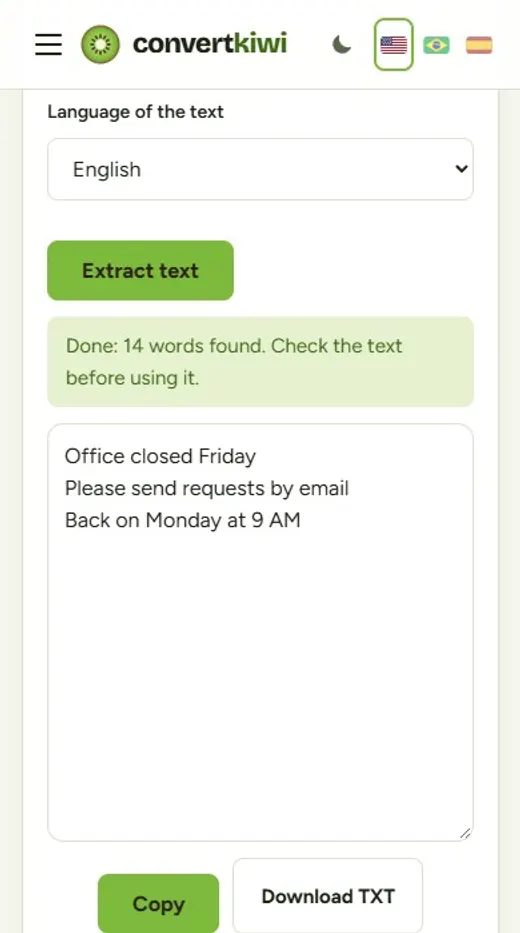
- Click Extract text. The first time takes a few extra seconds because your browser downloads the reading engine and the language file (about 4 MB plus 1.4 to 3 MB). After that they are cached.
- Read the result, fix any mistakes, then Copy it or Download TXT.
A picture saved as .jfif? Our Image to Text tool does not list that extension, so first run it through JFIF to JPG, which only renames the file without touching the picture.
How to get fewer mistakes
OCR is very accurate on clean screenshots: in our tests, typed text with accents, prices, phone numbers and times came out exactly right. Photos of paper are where errors appear, and almost always for the same reasons:
- Angle: shoot the page straight on, not from the side. Tilted lines are the most common cause of jumbled words.
- Light: avoid your own shadow across the page and glare on glossy paper.
- Size: get close enough that the text fills most of the photo. Tiny letters lose their shape.
- Crop: cut away logos, photos and borders so only the text remains.
- Contrast: dark text on a light background reads best. White text on a colored background is harder.
What about PDFs?
First try selecting the text in your PDF reader. If it highlights, the PDF already contains real text and you can simply copy it. If nothing gets selected, the PDF is a scan made of pictures: save the pages as images with PDF to JPG (it runs in your browser too), then read each page with Image to Text.
Common questions
Can OCR read handwriting?
Not reliably. The engines described here are made for printed text. Neat capital letters sometimes work; cursive usually does not.
Does it keep the formatting?
You get plain text with line breaks. Bold, fonts, columns and tables are not kept, so long documents may need some tidying after you paste them.
Is it safe for private documents?
With the ConvertKiwi tool the picture never leaves your device, because the recognition runs in your browser. The built-in Windows, Mac and iPhone features also work on the device itself.
Tip: always proofread numbers before you use them. A 5 read as an S or a 0 read as an O is the kind of mistake that is easy to miss and costly later.
Sources
More guides
How to Merge PDF Files Into One (in the Right Order)
Combine several PDFs into a single document online: how to get the page order right, what to do with password-protected files and how to include photos.
Read the guide →How to Extract Pages From a PDF (and Fix Sideways Pages)
Save only the pages you need from a PDF, split it into one file per page, reorder pages and fix sideways scans. Free, in your browser, with no upload.
Read the guide →How to Save a PDF Page as an Image (JPG or PNG)
Turn PDF pages into pictures you can post, send in a chat or put in a slide. When to choose JPG or PNG, how to get just one page, and how to keep small text readable.
Read the guide →What Is a JFIF File and How Do You Open or Convert It?
A .jfif file is a JPEG photo with an unusual ending. Learn why Windows saves pictures that way, how to open them, convert them to JPG, PDF or PNG, and stop it.
Read the guide →